
Overview
The Digital Vault provides a lightweight cloud storage solution, crafted to securely house your most essential documents, photos, and videos.
All files are protected with advanced encryption and row-level security, guaranteeing that your valuable content stays private and accessible solely to you or those you designate.
This feature simplifies the process of uploading or downloading files, making it effortless to manage and organise your digital assets.
Press and hold any file to open its quick actions menu:
If you also use the VitaVault app (free for all Inheritable subscribers), your Digital Vault integrates fully with your VitaVault account and the people you have designated to manage it.
Two folders behave in a special way:
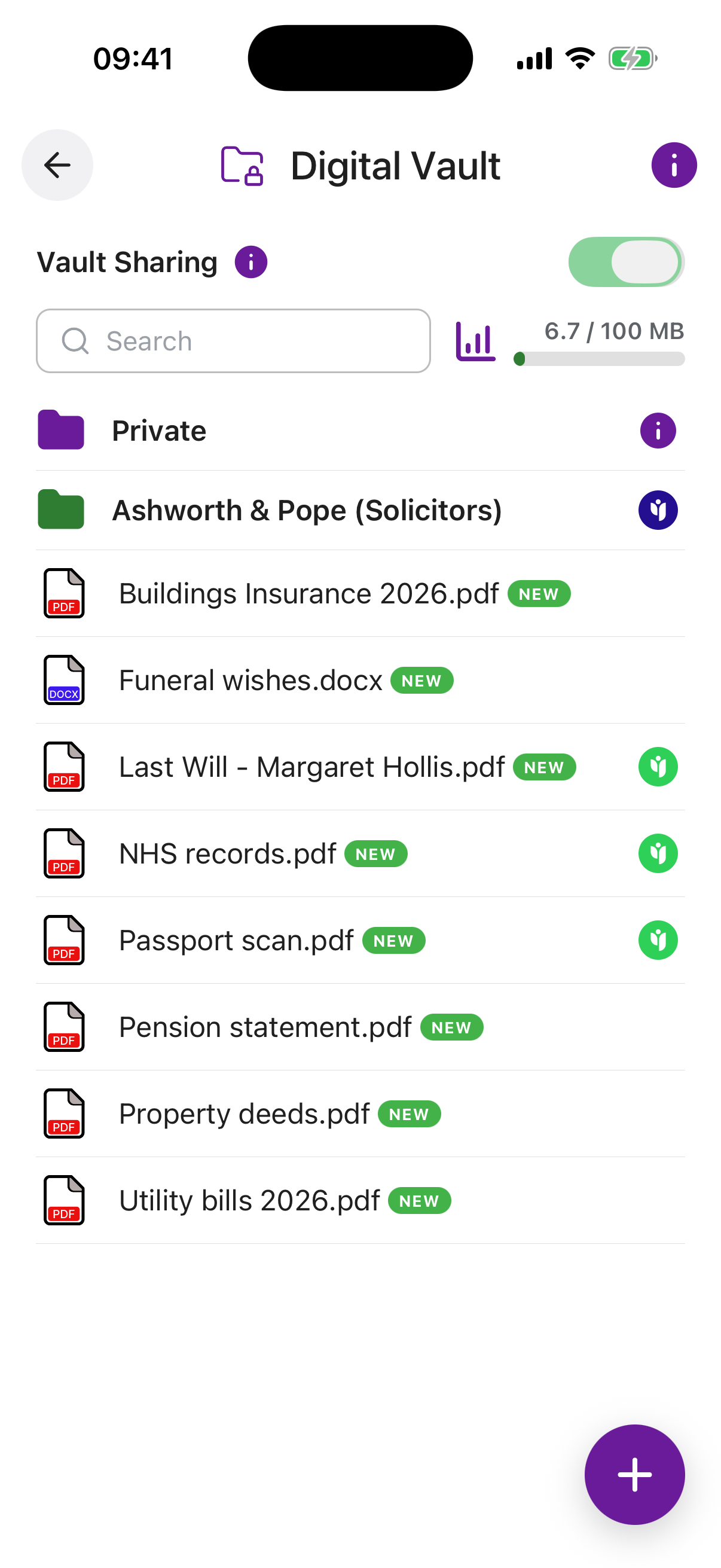
Private folder: By default, everything in your Digital Vault is handed over to your Digital Executors on passing, after the usual checks. The Private folder is the exception. Anything placed inside it is automatically deleted and purged before the account is handed over, so information meant to stay private remains private.
Trusted Advisor folder: If you have engaged a Trusted Advisor, a shared green folder appears here. It is a two-way space: both you and your Trusted Advisor can add files to it, making it easy to exchange documents securely. Files kept here are shared with that advisor and cannot be made private.
When the toggle is on, every item you have shared is visible to the contacts you chose. When it is off, nothing is shared with anyone, even if individual items still have contacts set.
Your per-item sharing choices are always preserved, so you can switch everything back on at any time without setting it all up again.
The Digital Vault is not meant as a replacement for your normal storage, but to keep your most important files in one safe, organised place, so you never have to hunt through emails, messaging services, online portals, or device folders to find them again.
Items added as attachments to lists such as Password Vault, Bucket List, and others will count towards your storage plan. Although they are stored within your personal Digital Vault, they will not be accessible through this vault feature, only via the list item they were attached to.
Storage Bar. Shows how much of your plan’s storage you have used.
Folders. Organise your files into named folders. Tap a folder to open it and browse its contents.
Files. Supported types include PDF, DOC, DOCX, XLS, XLSX, TXT, RTF, JPG/JPEG, PNG, TIFF, HEIC, WEBP, MP3, M4A, MP4, MOV, 3GP, INHJ.
Add (+) Button. Upload a file from your device, take a photo, record a voice note, or create a new folder.
Pin to Top. Keep an important file at the top of the list for quick access. Press and hold again to unpin it.
Move to Folder. Move the file into another folder to keep your vault organised.
Rename. Give the file a clearer or more memorable name.
Duplicate. Make a copy of the file within your vault.
Share with Inheritable User. Share the file securely, inside Inheritable, with one or more of your contacts. They see it through their Trusted Access view. This option appears only when the master Share Toggle is on.
Share via Device. Send the file out using your device’s own share sheet, for example by email or message. This sends a copy outside Inheritable.
Delete. Permanently remove the file from your Digital Vault. This cannot be undone.